Smart Home App
The problem
The purpose of this product was to design a Smart HVAC (Heating, Ventilation, and Air Conditioning) system that determines what rooms should be heated or cooled. It would allows users to control temperature and humidity settings from their phone, wherever sensors were placed.
Traditionally users would have to individually adjust thermostats for each room if they wanted to change the temperature. However with the rise of smart home monitors, it would allow users to conveniently control multiple devices from one single interface. With this control users would increase their energy efficiency by letting the smart thermostat learn their temperature preferences and schedule, then suggest the most optimal energy settings.
Wireframes and Iteration #1
I started the process with some rough sketches for the app. While thinking of ideas, I knew the main focus of the app would be the temperature setting. I thought of different ways that users would be able to adjust the temperature, such as a dial, slider or input. It was also important that they easily see the current and set temperature.
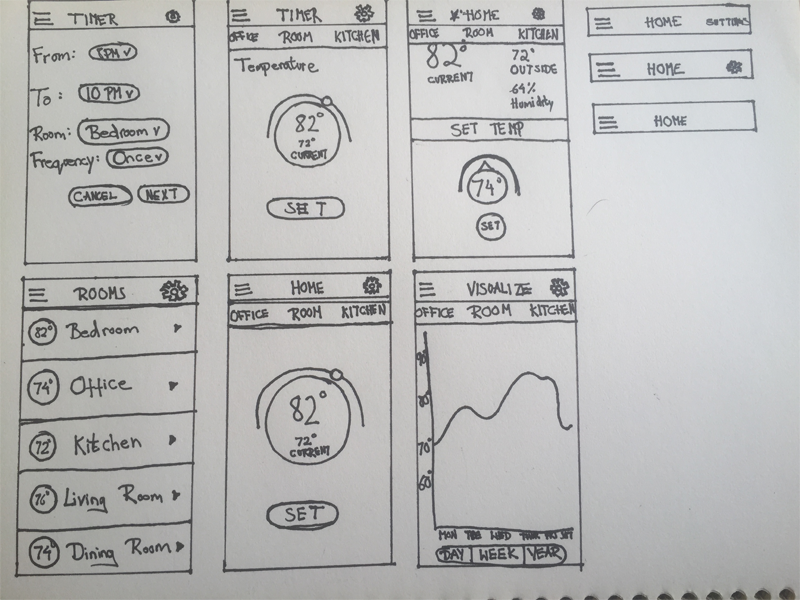
Example sketches of home screen
Using Axure I created some initial wireframes based on the previous sketches. Keeping in mind to design the interactions from a developers stand point.
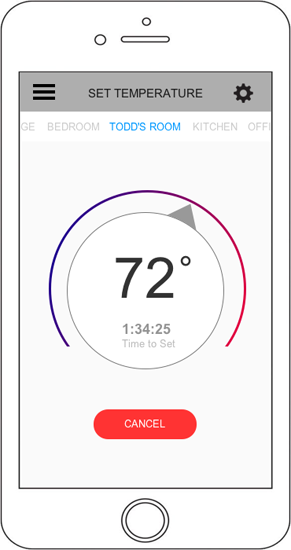
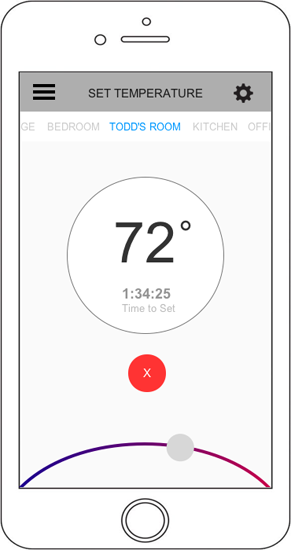
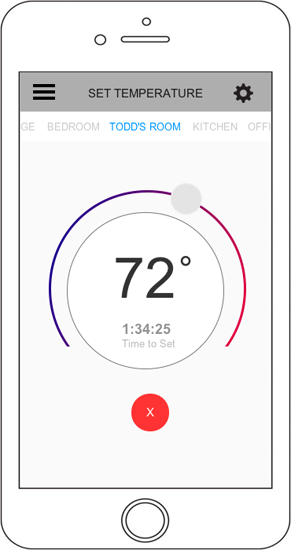
Variations of temperature setting screen
After looking at the wireframes, we decided to go with wireframe #3 for the dial. The main problem with #2 being that users would have to reach for the edges of their phones to adjust the temperature. For #1 although the dial to set the temperature looked good visually, it didn't feel natural to adjust the dial.
Iteration #2
One important change I needed to make before starting the finished designs was to only allow sign up through Facebook. Given that the app would expose strangers to a users possible residence, it was important that we protect the privacy of the users.
.png)
.png)
.png)
Temperature screen with different colors schemes
As you can see, I played around with the headers, the placement, the colors, the spacing, and many other things. In the end, we chose the design in the middle. While not as colorful compared to the other two designs, the middle was clean and simple. With the muted colour scheme of the second design, the focal point would be on the dial. As opposed to competing with the background colors of the other two.
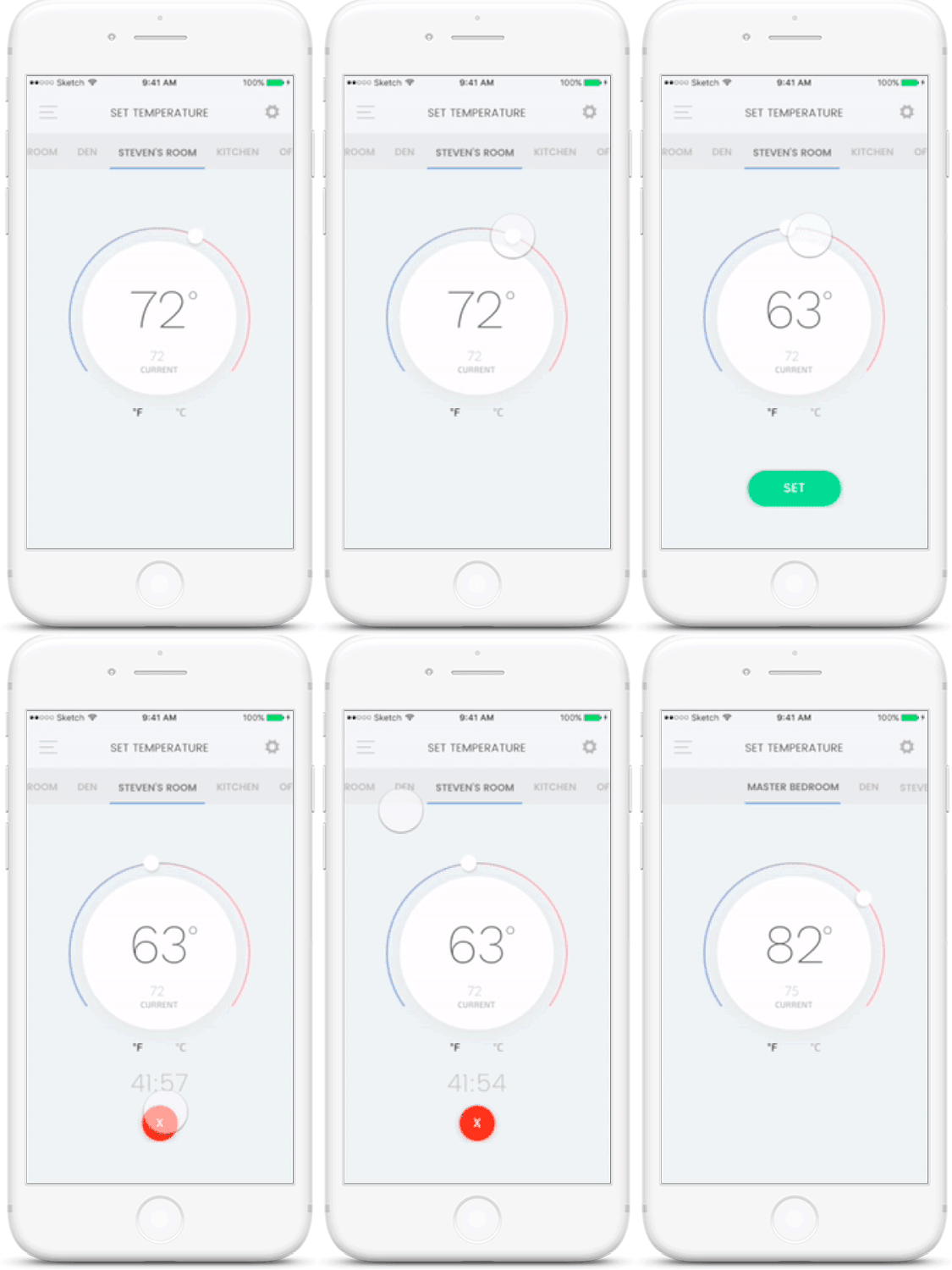
Temperature being set for room
Next I had to work on what would happen once the temperature was set. Initially in the wireframes, I had the time to set temperature visible where the current temperature was. However, this wasn't practical as the user would need to see the current temperature as well. I then moved the set temperature button lower allowing room for a timer to appear once the button was pressed. This way the user could cancel the change if they felt the current temperature was suitable.
Usability Studies
We used 5 people to test out the application. We had them walk through different scenarios while observing how they interacted with the design. They all agreed that setting the temperature was fast and simple, which was what we set out to do. There was one screen which the test users had trouble with. For the visualization screen a user would see a graph of room temperature for a week, month or the day. The problem was that there wasn't a easy way to see the temperature for a particular period.
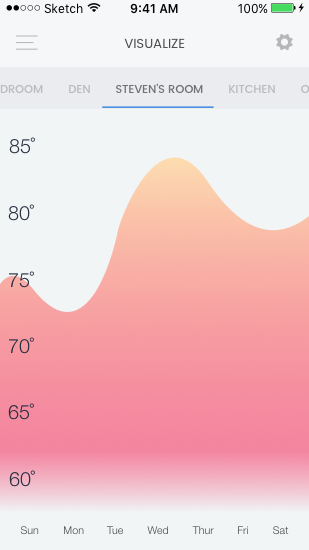
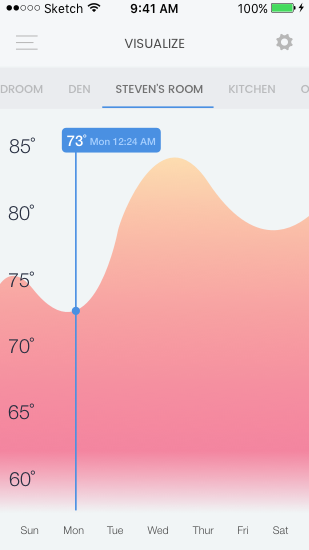
Visual screen before and after
To fix this, I added a visual helper that would be shown when the user holds down on the screen. They could then drag it across to see the exact temperature at a certain time. Similar in function to the google finance chart.
Conclusion
This was my first time working on a IoT app. It was an interesting experience designing an app that would work with a physical component. Some lessons learned:
- Don't assume users would know what items did, even if they seem clear. For example the slider to control the temperature. From the usability tests some users didn't know right away that it would set the temperature cooler or warmer.
- Don't be afraid to ask for feedback during the design process.
- Clients usually can be set on a list of items they want/don't want. That doesn't necessarily mean they are not open to the idea of change. If you can provide a visual example, it makes it a lot easier to see rather than describing it.